Configuring SSH for Personal and Work GitHub Accounts
If you're a developer, you most likely have a GitHub account which has a long history of contributions you are proud of:

While I'm still actively involved in various open source projects, I've had my peak in 2012 working on FreeRDP. Building a long history of contributions is a common reason why developers cling to their personal GitHub account and often wish to reuse it at work, if the employer allows it.
That was my case until recently, and I decided to make a clean split for an unexpected reason: GitHub Copilot. My MVP benefits include GitHub Copilot Pro+, but a work-assigned Copilot license overrides personal entitlements. Keeping both GitHub Copilot subscriptions meant using two separate GitHub accounts.
Generate Separate SSH Key Pairs
First, you'll want to generate new SSH keys: you can't upload the same SSH public key in two separate GitHub accounts. If you're only using one SSH key pair, it's likely using default file names. You could rename it to keep for your current account, but I'd recommend using this as the opportunity to start fresh with new key pairs. When was the last time you changed your SSH keys anyway?
In my case, I will create two key pairs, one for Devolutions (work), and one for awakecoding (personal):
~/.ssh/id_ed25519_devolutions(work account)~/.ssh/id_ed25519_awakecoding(personal account)
In PowerShell, here's how to invoke ssh-keygen, pay close attention to the syntax for the empty passphrase at the end:
ssh-keygen -t ed25519 -C "mamoreau@devolutions.net" -f ~/.ssh/id_ed25519_devolutions -N '""'
ssh-keygen -t ed25519 -C "marcandre.moreau@gmail.com" -f ~/.ssh/id_ed25519_awakecoding -N '""'
In bash, it's a bit simpler:
ssh-keygen -t ed25519 -C "mamoreau@devolutions.net" -f ~/.ssh/id_ed25519_devolutions -N ""
ssh-keygen -t ed25519 -C "marcandre.moreau@gmail.com" -f ~/.ssh/id_ed25519_awakecoding -N ""
While I recommend you take the time to read on how to use SSH keys with passphrases, I'm skipping those steps in the current instructions for simplicity.
Upload Your SSH Keys to Both Accounts
Print the public key matching your work account, and copy it to the clipboard:
PS> cat ~/.ssh/id_ed25519_devolutions.pub
ssh-ed25519 AAAAC3NzaC1lZDI1NTE5AAAAII5OFjeTECnexcKpvqEXEqjiSzJy4CeA5PF27cw54XpN mamoreau@devolutions.net
In PowerShell, you can use Set-Clipboard. Unfortunately, this doesn't work well inside WSL:
cat ~/.ssh/id_ed25519_devolutions.pub | Set-Clipboard
Now go to GitHub → Settings → SSH and GPG keys → New SSH key, and add the public key to your work account:
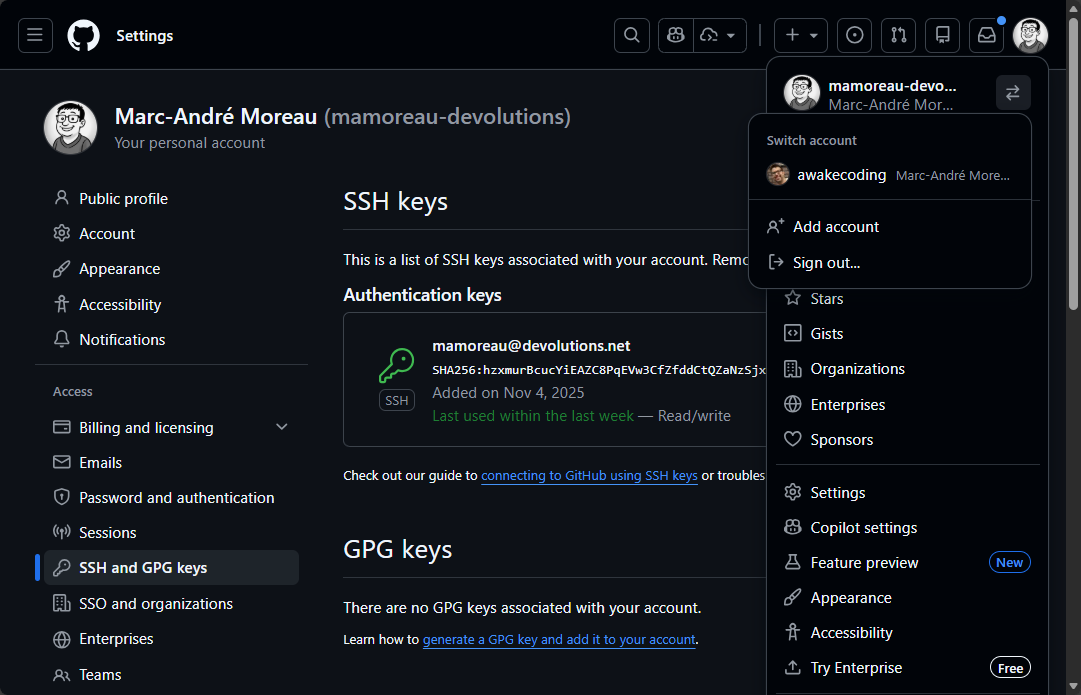
You should receive an email alert after adding a new SSH key. Now click on your avatar, you should see an account switcher. Switch to your personal account, and repeat the steps with your personal SSH public key.
Configure SSH to Use the Right Key Automatically
You now have two SSH key pairs, each properly authorized with separate GitHub accounts. The biggest challenge now is getting git to select the right SSH keys at the right time, because it can no longer assume a default SSH key pair for everything.
Create or edit ~/.ssh/config, and configure two separate Host entries, each pointing to a different IdentityFile:
# devolutions GitHub account
Host devolutions
    HostName github.com
    User git
    IdentityFile ~/.ssh/id_ed25519_devolutions
    IdentitiesOnly yes

# awakecoding GitHub account
Host awakecoding
    HostName github.com
    User git
    IdentityFile ~/.ssh/id_ed25519_awakecoding
    IdentitiesOnly yes
With this new SSH config file, you can now use this syntax to clone github.com/awakecoding/MsRdpEx with either one of the two identities explicitly:
git clone git@awakecoding:awakecoding/MsRdpEx # clone with 'awakecoding' identity
git clone git@devolutions:awakecoding/MsRdpEx # clone with 'devolutions' identity
Now while this explicit syntax is reliable, it is cumbersome to use, and isn't practical with git submodules where the git url is usually the "normal" one without an explicit custom host.
Make Git Rewrite URLs Automatically
Thankfully for us, it's possible to configure git to automatically rewrite URLs, and we can leverage this feature to automatically map "normal" git URLs to explicit custom hosts. In my case, I want all repositories under github.com/Devolutions to use my 'devolutions' identity:
git config --global url."git@devolutions:Devolutions/".insteadOf "git@github.com:Devolutions/"
git config --global url."git@devolutions:devolutions/".insteadOf "git@github.com:devolutions/"
I'm creating two separate rules to handle both "Devolutions" and "devolutions" due to possible inconsistency in casing, and the fact that the rules are handled in a case-sensitive way.
For my personal account, I simply want everything under github.com/awakecoding to use my 'awakecoding' identity:
git config --global url."git@awakecoding:awakecoding/".insteadOf "git@github.com:awakecoding/"
You can now verify that the rules have been saved properly:
PS> git config --global --get-regexp "url\..*\.insteadof"
url.git@devolutions:Devolutions/.insteadof git@github.com:Devolutions/
url.git@devolutions:devolutions/.insteadof git@github.com:devolutions/
url.git@awakecoding:awakecoding/.insteadof git@github.com:awakecoding/
Clone Repositories with Automatic Identity Selection
Now you can use regular GitHub URLs and git will automatically use the correct identity. I suggest you try cloning a private git repository to confirm it works.
The next problem to solve is automatic user email configuration. In my case, I configured my work email address as global default:
PS> git config --global user.email
mamoreau@devolutions.net
However, this means that whenever I clone a personal GitHub repository, I need to manually change the user email to my personal one. Let's create a new ~/.gitconfig-awakecoding file with the following:
[user]
    email = marcandre.moreau@gmail.com
Now edit ~/.gitconfig to add conditional inclusions for awakecoding repositories, before and after git URL rewriting:
[includeIf "hasconfig:remote.*.url:git@github.com:awakecoding/**"]
    path = ~/.gitconfig-awakecoding
[includeIf "hasconfig:remote.*.url:git@awakecoding:awakecoding/**"]
    path = ~/.gitconfig-awakecoding
Adapt and paste this after the '[user]' section of the main .gitconfig file. Clone a personal test repository, then see if the email was correctly overridden:
PS> git clone git@github.com:awakecoding/MsRdpEx.git
PS> cd MsRdpEx
PS> git config user.email
marcandre.moreau@gmail.com
I decided to make my work email the default, but you can also do it the other way around, and use the personal email by default, and override it for work GitHub repositories instead. This specific feature requires git 2.36 or newer.
GitHub CLI (gh)
You can now clone git repositories with two different identities, but what about other tools, like the GitHub CLI? You can check your current authentication status using gh auth status:
PS> gh auth status
github.com
  ✓ Logged in to github.com account mamoreau-devolutions (keyring)
  - Active account: true
  - Git operations protocol: ssh
  - Token: gho_************************************
  - Token scopes: 'gist', 'read:org', 'repo'

  ✓ Logged in to github.com account awakecoding (keyring)
  - Active account: false
  - Git operations protocol: ssh
  - Token: gho_************************************
  - Token scopes: 'admin:public_key', 'gist', 'read:org', 'repo'
Use gh auth login to login with a new account, and thankfully, it's possible to login to multiple accounts at once. However, here's where the GitHub CLI falls short: there's no way to automatically select an account for specific git repositories, so you have to manually switch between them using gh auth switch:
PS> gh auth switch --user awakecoding
✓ Switched active account for github.com to awakecoding
This is a global change affecting usage of the GitHub CLI across all local git clones. The CLI has no awareness of git's URL rewriting rules or your SSH config—it's completely separate. You'll forget to switch, try to create an issue or PR, and hit a confusing error. I'm still hoping GitHub adds per-repository account detection to the CLI.
VSCode Extensions
Many VSCode extensions use a GitHub account, so you'll want to switch between them based on the project you are working on. I use separate VSCode profiles to synchronize my settings and extensions. Unfortunately, VSCode profiles don't extend to account management: it's not possible to automatically select a different GitHub account based on a profile, even though profiles restore everything else. This feels like a missed opportunity—profiles already track workspace-specific settings and extensions, so account associations should travel with them too.
This being said, I still switch between personal and work profiles in VSCode, just to remind me which account I should be currently using. To switch between accounts, go to Manage Trusted Extensions:
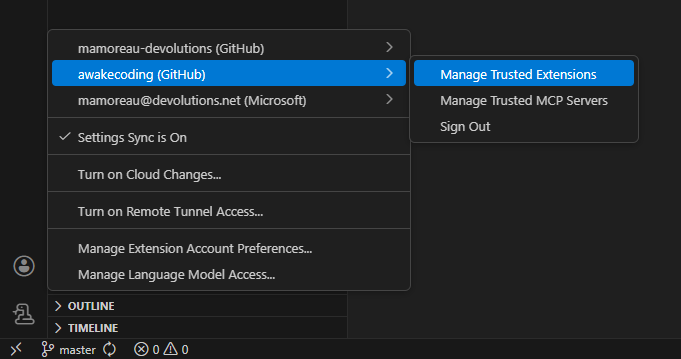
From the trusted extensions list, click the gear icon beside one of the extensions:

You can login to a new account, or select an existing account:
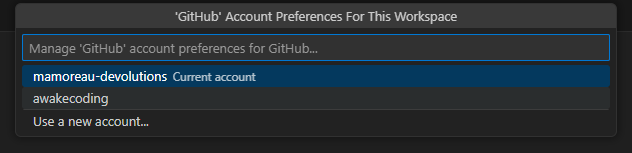
You need to do this once per extension. Yes, this means that you need to do those steps once for the GitHub extension, and then another time for the GitHub Copilot Chat extension. It's annoying, and frankly disappointing that there's no way to save these preferences inside a VSCode profile.
GitHub Web Interface
You can login with multiple accounts in GitHub, and you can switch between them. The problem is you'll repeatedly forget to switch and wonder why you can't access a specific repository, or why you don't have rights to merge a pull request, etc, before realizing you're using the incorrect account and need to switch. Here's me opening a private repository from work when I currently have my personal account selected:
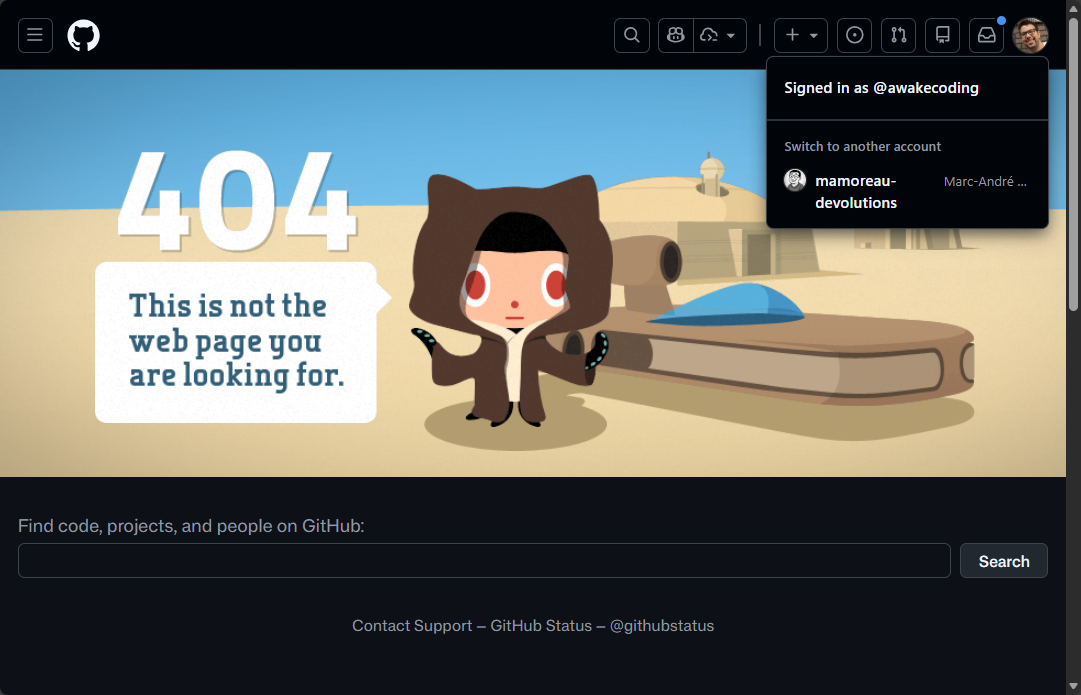
Wait, do I not have access? Oh right, wrong account!
This happens constantly. You'll review pull requests with the wrong account, leaving colleagues and open source collaborators confused. You'll try to merge a PR and wonder why the button is disabled. Browser profiles help, but links opened from Slack, GitHub Copilot or email always launch in your default profile, defeating the purpose.
The Reality of Using Multiple GitHub Accounts
Using two separate GitHub accounts is the cleanest way to isolate personal and work access. Git itself handles it well once configured—SSH config, URL rewriting, and conditional email settings work beautifully. The remaining friction is mostly around account switching in the GitHub CLI, VSCode extensions, and the web interface.
What works well:
- ✅ SSH key isolation with proper
~/.ssh/config - ✅ Git URL rewriting for automatic identity selection
- ✅ Automatic email configuration with
includeIf
What could be improved:
- ❌ GitHub CLI requires manual account switching globally
- ❌ VSCode extensions don’t respect profiles for account management
- ❌ Web interface has no context awareness for account switching
I’ve been using this setup for several months now, and while the git operations are smooth, the surrounding tools still add friction. I’d love to see more first-class support for multi-account workflows over time.