Everything Wrong with MSIX: The Virtual Filesystem Trap
MSIX solves real packaging problems, but it also creates a filesystem transition problem that looks minor until you support real customers: paths. The install path problem is mostly a discovery problem. The settings path problem is a product-risk problem.
The MSIX containerization model is meant to provide clean uninstall, reliable updates, tamper resistance, user-scoped state, and less system rot. Those are valuable goals. The adoption problem is that file paths are not just implementation details users and administrators can ignore. In practice, paths are operational contracts: documentation, support scripts, log collectors, firewall and EDR rules, backup policies, roaming profile exclusions, automation, environment variables, and the muscle memory of every support engineer who has ever said, "open File Explorer and go to..."
Changing an install path is not cosmetic. It changes how software is discovered, diagnosed, automated, and trusted. But the install path is only the mild version of the problem. The higher-risk break comes when the application's settings path changes too, because now the packaged and unpackaged versions can behave like two different products with two different user profiles.
Where Is Windows Terminal?
Let's start with a familiar packaged application: Windows Terminal. From PowerShell, wt.exe appears to be on PATH:
(Get-Command wt).Source
C:\Users\mamoreau\AppData\Local\Microsoft\WindowsApps\wt.exe
That is not the traditional executable install location. It is an app execution alias under the user's profile. That part is useful: app execution aliases make packaged apps launchable from the command line without every vendor adding custom install directories to PATH. Microsoft documents this as uap5:AppExecutionAlias, and the Windows Terminal command-line documentation tells users to enable the alias if wt.exe is not found.
The important distinction is that the alias is a launch entry point, not the application payload or the settings location. The real package payload is somewhere else entirely:
Get-AppxPackage Microsoft.WindowsTerminal | Select-Object Name, Version, PackageFullName, PackageFamilyName, InstallLocation

Name              : Microsoft.WindowsTerminal
Version           : 1.24.11321.0
PackageFullName   : Microsoft.WindowsTerminal_1.24.11321.0_x64__8wekyb3d8bbwe
PackageFamilyName : Microsoft.WindowsTerminal_8wekyb3d8bbwe
InstallLocation   : C:\Program Files\WindowsApps\Microsoft.WindowsTerminal_1.24.11321.0_x64__8wekyb3d8bbwe
Now try browsing the parent folder directly:
Get-ChildItem 'C:\Program Files\WindowsApps'
Get-ChildItem: Access to the path 'C:\Program Files\WindowsApps' is denied.
This is the first path distinction. With an MSI install, the answer to "where is the program installed?" is usually a path like this:
C:\Program Files\Vendor\Product\Product.exeWith MSIX, the answer is split across a launch alias, package identity, protected storage, and package-scoped app data:
C:\Users\<user>\AppData\Local\Microsoft\WindowsApps\wt.exe
C:\Program Files\WindowsApps\Microsoft.WindowsTerminal_1.24.11321.0_x64__8wekyb3d8bbwe\WindowsTerminal.exe
C:\Users\<user>\AppData\Local\Packages\Microsoft.WindowsTerminal_8wekyb3d8bbwe\LocalState
The alias solves command-line launch. The install and state paths behind it are the parts that are not equally visible, stable, writable, or explainable on a support call.
For example, a regular user cannot open C:\Program Files\WindowsApps to list the installed package folders. The place where the real MSIX payloads live is intentionally protected, and the broader Windows app model has its own file access permission rules, so the obvious payload discovery path starts with an access-denied dialog.
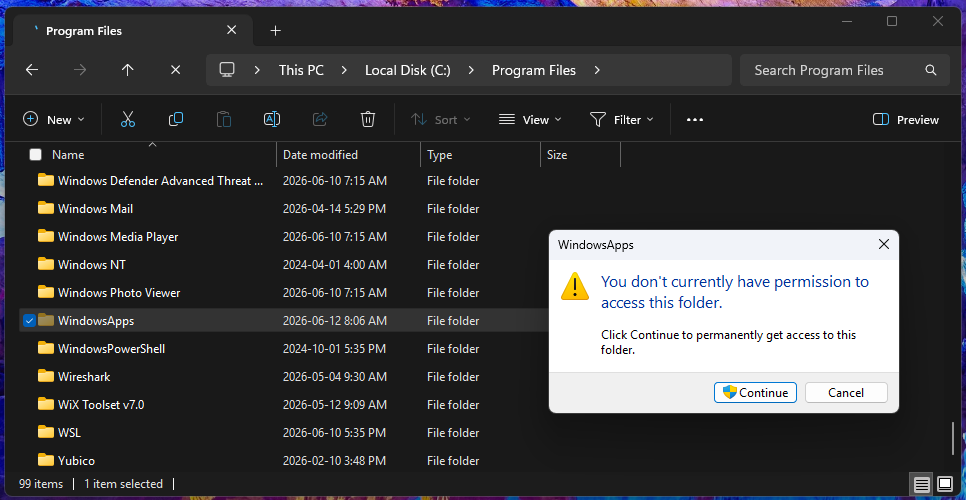
A user can open a package install folder directly if they already have the exact full path, but that is a very different support experience. It is easy to say "open C:\Program Files, then open Vendor, then open Product" on a call. It is much harder to ask someone to copy a versioned package path that is discoverable through PowerShell but not by browsing.
C:\Program Files\WindowsApps\Microsoft.WindowsTerminal_1.24.11321.0_x64__8wekyb3d8bbwe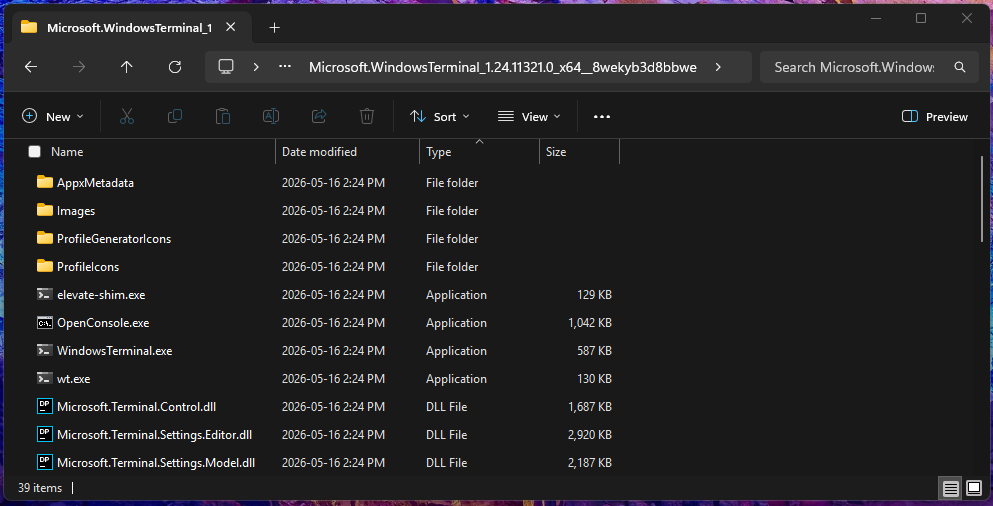
The Package Install Path Is Opaque by Design
MSIX package payloads are installed under C:\Program Files\WindowsApps, using a package full name like Microsoft.WindowsTerminal_1.24.11321.0_x64__8wekyb3d8bbwe, which includes the package name, version, architecture, resource ID, and publisher ID.
That path is precise for Windows, but poor for human workflows. It is versioned, verbose, and contains an opaque publisher identifier. It also changes when the package version changes.
This matters for vendors considering MSIX as an alternative to MSI. Many support and enterprise workflows assume the installation root is a stable, documented path: scripts check an executable, monitoring tools allowlist a binary path, support runbooks ask for logs under the install directory, and deployment validation looks for files under a known root. MSIX effectively asks vendors and administrators to stop assuming a pattern the Windows ecosystem has relied on for decades.
I consider the executable install path a real but manageable friction point. You can usually document the new location, expose a command-line alias, add a registry key, or teach a script to resolve the installed package. None of that is ideal, but it is survivable.
Settings paths are different. They are not just lookup locations for binaries. They contain user data, customer policy, environment-specific values, support history, and sometimes years of carefully accumulated configuration. When that path changes, the vendor is no longer just explaining where the program is installed. The vendor is deciding what happens to the customer's state.
The Settings Path Is the Bigger Risk
Packaged apps get package-scoped app data folders under %LocalAppData%\Packages\<PackageFamilyName>:
Get-ChildItem "$Env:LocalAppData\Packages\Microsoft.WindowsTerminal_8wekyb3d8bbwe"

    Directory: C:\Users\mamoreau\AppData\Local\Packages\Microsoft.WindowsTerminal_8wekyb3d8bbwe

Mode                 LastWriteTime         Length Name
----                 -------------         ------ ----
d----          2024-10-01  1:38 PM                AC
d----          2024-03-21 10:20 AM                AppData
d----          2024-10-01  1:38 PM                LocalCache
d----          2026-06-05  2:54 AM                LocalState
d----          2024-03-21 10:20 AM                RoamingState
d----          2024-10-01  1:38 PM                Settings
d----          2024-10-01  1:38 PM                SystemAppData
d----          2024-03-21 10:20 AM                TempState
For unpackaged apps, support instructions often use familiar paths:
%AppData%\Vendor\Product
%LocalAppData%\Vendor\Product
%ProgramData%\Vendor\Product
For packaged apps, the equivalent state may be under paths like these:
%LocalAppData%\Packages\<PackageFamilyName>\LocalState
%LocalAppData%\Packages\<PackageFamilyName>\LocalCache
%LocalAppData%\Packages\<PackageFamilyName>\RoamingState
%LocalAppData%\Packages\<PackageFamilyName>\TempState
Microsoft's app data documentation explains the intended model: packaged apps should use ApplicationData.Current.LocalFolder, LocalCacheFolder, RoamingFolder, and TemporaryFolder instead of hardcoding physical paths. That is good API guidance for developers. It does not erase the operational reality that support teams, administrators, and external tools still need to find the physical files.
Windows Terminal makes this split easy to see. The MSIX-packaged version stores its user settings here:
%LocalAppData%\Packages\Microsoft.WindowsTerminal_8wekyb3d8bbwe\LocalState\settings.jsonFor an unpackaged Windows Terminal, use the official ZIP asset from the Windows Terminal releases page, not the installed MSIX package under C:\Program Files\WindowsApps. Extract the ZIP, run WindowsTerminal.exe from that folder, and it runs without package identity. Without portable-mode opt-in, that unpackaged build uses the unpackaged settings path instead:
%LocalAppData%\Microsoft\Windows Terminal\settings.jsonThat is already two settings files for the same application version. If a user changes a profile in the MSIX package, the ZIP build will not read it from LocalState; if the user changes the ZIP build settings, the MSIX package will not read them from %LocalAppData%\Microsoft\Windows Terminal.
One answer is to say: the future is packaged, so migrate the settings once and move on. That sounds simple until you are the vendor responsible for customer data. Settings migration is risky. If the migration code has a bug, if it misses a file, if it misunderstands a versioned schema, or if it overwrites something the customer expected to keep, you have created a data-loss incident out of an installer choice.
Rollback makes it worse. Suppose a customer installs the MSIX package, launches it, and the application automatically migrates settings from the unpackaged location into the package-scoped location. Then the customer decides MSIX is not working for them and goes back to the MSI or ZIP build. The unpackaged app may start as a fresh, unconfigured application because the active settings now live under %LocalAppData%\Packages\<PackageFamilyName>. The files may still exist, but the customer now has two versions of the truth in two different directories.
For an existing desktop app, that can be a large operational risk introduced by the packaging transition. A simple, predictable settings path is a feature: scripts can bootstrap the application, external tools can preconfigure it, support can name the file, and customers can inspect or redact it without package identity, an app data API, or a support utility.
This leaves vendors choosing between trade-offs that did not exist before:
- Keep packaged and unpackaged settings separate, and accept that the same user may see different configuration depending on how the app was launched.
- Copy or move settings into the package location, and accept stale state, rollback, and external-tool compatibility risks.
- Build two-way synchronization, and accept a new conflict-resolution problem that the product did not need before.
- Avoid MSIX-specific state APIs and keep using the old path, giving up some of the isolation model MSIX is trying to provide.
None of those choices is equivalent to the old MSI answer: the settings are in the documented settings folder, regardless of how the application was installed.
The ZIP build also supports explicit portable mode: if a .portable marker file is placed next to Microsoft.Terminal.Settings.Model.dll, Terminal roots settings and state in a settings folder beside that DLL. That makes the portable-mode path look like this:
<WindowsTerminalZipRoot>\settings\settings.jsonThat is useful, but it is also another path a support engineer must know to ask about. When a product has packaged, unpackaged, and portable forms, "send me your settings file" is no longer a single instruction.
The Virtual Filesystem Makes Paths More Complicated
The part that makes this even more confusing is the MSIX virtual filesystem. Microsoft documents this in Understanding how packaged desktop apps run on Windows: packaged desktop apps run with special filesystem behavior depending on the location being accessed.
The important pieces are:
- The package install directory is read-only at runtime.
- The package can contain a virtual filesystem folder named
VFS, with files mapped into well-known Windows locations. - Reads can show a merged view of real system folders and package-provided virtual files.
- Writes under parts of
AppDatacan be redirected to a private per-user, per-package location.
The goal is compatibility. If a classic desktop app expected a DLL to exist in System32, the package can include it under the corresponding virtual filesystem folder and Windows can make it appear in the expected place for that app. If an app writes new files under certain AppData locations, Windows can redirect those writes so the package state remains isolated and removable. Newer MSIX packages can also opt into flexible virtualization, which is useful, but also reinforces the point: whether a path behaves like a normal path depends on package identity and runtime context.
That is clever engineering. It is also another source of mismatch between what the app sees and what the user, support engineer, service, script, or external diagnostic tool sees.
When a packaged app reads a path, it may be seeing a merged view. When it writes a path, the write may land somewhere else. When another process inspects the same ordinary-looking path, it may not have the same package identity, package registration, or virtualization context. This is why Microsoft's own runtime troubleshooting guidance and MSIX troubleshooting guide have to talk about container behavior explicitly. This is also the point where "just open the config file" turns into a diagnostic exercise.
Why This Breaks Migration Assumptions
Imagine a vendor with an existing MSI package. The application has been around for years. Customers know where logs are. Support knows where settings are. Automation knows where the executable is. Enterprise customers have allowlists, detection rules, backup exclusions, and deployment checks. Then the vendor decides to offer an MSIX package as a "modern" alternative.
Even if the application code works, the operational surface changes:
- Packaged and unpackaged builds may read different settings files.
- Automatic settings migration can create rollback and downgrade traps.
- Existing support scripts may miss logs and settings.
- Existing customer scripts may bootstrap or preconfigure the wrong directory.
- User data may move under
%LocalAppData%\Packages\<PackageFamilyName>. - Profile-management products may treat package folders differently.
- Machine-wide state under
%ProgramData%may no longer fit the package model. - The executable is no longer under a predictable vendor install folder.
- The real install path is ACL-protected and versioned.
This is why "paths should be irrelevant" is not a sufficient answer. Paths are part of the product contract, even if they were never written down that way.
The Operational Contract Changes
The moment an application has both packaged and unpackaged forms, the vendor inherits a new operational contract. The hard question is not only whether the MSIX package launches. It is what happens to the customer's existing configuration files, logs, support bundles, deployment detection rules, profile-management assumptions, backup rules, and preconfiguration scripts. Those things may never have been treated as a formal API, but customers build around them anyway.
The hardest part of shipping MSIX beside MSI is not always packaging the binaries. It is deciding whether to migrate user state at all, how to make that migration safe, and how to support customers who need to move back. The packaged version may look like the same product to the end user while behaving like a different product to everyone responsible for operating it.
That is the transition cost vendors feel directly. MSIX moves risk from the platform model into the product team. If the vendor migrates too aggressively, they can break rollback or damage customer state. If they migrate too cautiously, customers see an empty profile and assume the product lost their settings. If they keep both paths alive, support now has to ask which package type launched the app before they can even interpret a log bundle.
What Support Teams Need to Resolve
A small helper makes the package path model visible. If you support MSIX-packaged apps, you eventually need to translate a package name into the paths users can actually inspect. Here are the pieces involved:
function Get-AppxPathMap {
    param(
        [Parameter(Mandatory = $true)]
        [string] $PackageName
    )

    $appx = Get-AppxPackage -Name $PackageName | Select-Object -First 1
    if (-not $appx) {
        throw "Package not found: $PackageName"
    }

    $packageFamilyName = $appx.PackageFamilyName
    [pscustomobject]@{
        Name            = $appx.Name
        Version         = $appx.Version.ToString()
        PackageFullName = $appx.PackageFullName
        PackageFamily   = $packageFamilyName
        InstallLocation = $appx.InstallLocation
        AliasRoot       = Join-Path $Env:LocalAppData "Microsoft\WindowsApps"
        AppDataRoot     = Join-Path $Env:LocalAppData "Packages\$packageFamilyName"
        LocalState      = Join-Path $Env:LocalAppData "Packages\$packageFamilyName\LocalState"
        LocalCache      = Join-Path $Env:LocalAppData "Packages\$packageFamilyName\LocalCache"
        RoamingState    = Join-Path $Env:LocalAppData "Packages\$packageFamilyName\RoamingState"
        TempState       = Join-Path $Env:LocalAppData "Packages\$packageFamilyName\TempState"
    }
}

Get-AppxPathMap -PackageName Microsoft.WindowsTerminal | Format-List
That helper is not a workaround. It illustrates the extra resolution step. With a classic MSI install, support documentation usually points at a stable vendor folder. With MSIX, support tooling has to resolve package identity first, then translate it into the install location, alias root, and app data root.
The support cost is not just internal convenience. Customers often need to inspect or redact settings before sharing them. A predictable path makes that possible with File Explorer; a package-scoped path hidden behind identity lookup turns a basic support request into a guided procedure.
Suggested Improvements
If you work on MSIX at Microsoft, these are the platform changes that would reduce the adoption cost for ISVs:
- Make it possible to open
%ProgramFiles%\WindowsAppsin File Explorer, at least for read-only inspection of installed package files. It is much easier to ask a user to open a folder than to ask them to discover a package full name first. MSIX may be designed to "just work", but packaging mistakes still happen, and support teams often need to confirm that specific DLLs are present with the expected version numbers in the installed path. - Allow unvirtualized filesystem paths for application settings, so vendors can move back and forth between MSI, ZIP, and MSIX without creating two distinct directories for the same application state. This is the riskiest path change introduced by MSIX because it touches customer data, rollback behavior, and support workflows.
- Allow filesystem aliases for program files and program data. If filesystem virtualization has to remain, take inspiration from app execution aliases and let traditional program files and data paths resolve to their packaged equivalents. Existing scripts, runbooks, monitoring rules, and support instructions need a compatibility path.
The core problem is that MSIX combines application packaging with application virtualization, and ISVs cannot adopt one without absorbing the operational consequences of the other. MSIX is not "just" a packaging format. The virtualization model can make the packaged application operationally distinct from its unpackaged equivalent, even when the binaries and UI look the same.
Closing Thoughts
MSIX is trying to solve real problems: uninstall cleanup, update reliability, package integrity, dependency management, and state isolation. Those goals matter. But software distribution is not only about installing files. It is also about making software observable, scriptable, supportable, and predictable.
MSI has plenty of problems, but it gave vendors and administrators a simple mental model: files go here, machine state goes there, user state goes somewhere recognizable, and the installed product can be found without decoding package identity. MSIX replaces that model with a more controlled one, but the transition cost is real. The install path friction is mostly a discovery problem. The settings path friction is higher risk, because it touches user data, rollback behavior, support workflows, and customer trust.
For consumer desktop apps, maybe that trade-off is acceptable. For developer tools, infrastructure tools, enterprise software, and anything with serious support obligations, paths are not irrelevant. They are part of the product experience.